SMM Panel Order Status Explained: A Complete Guide
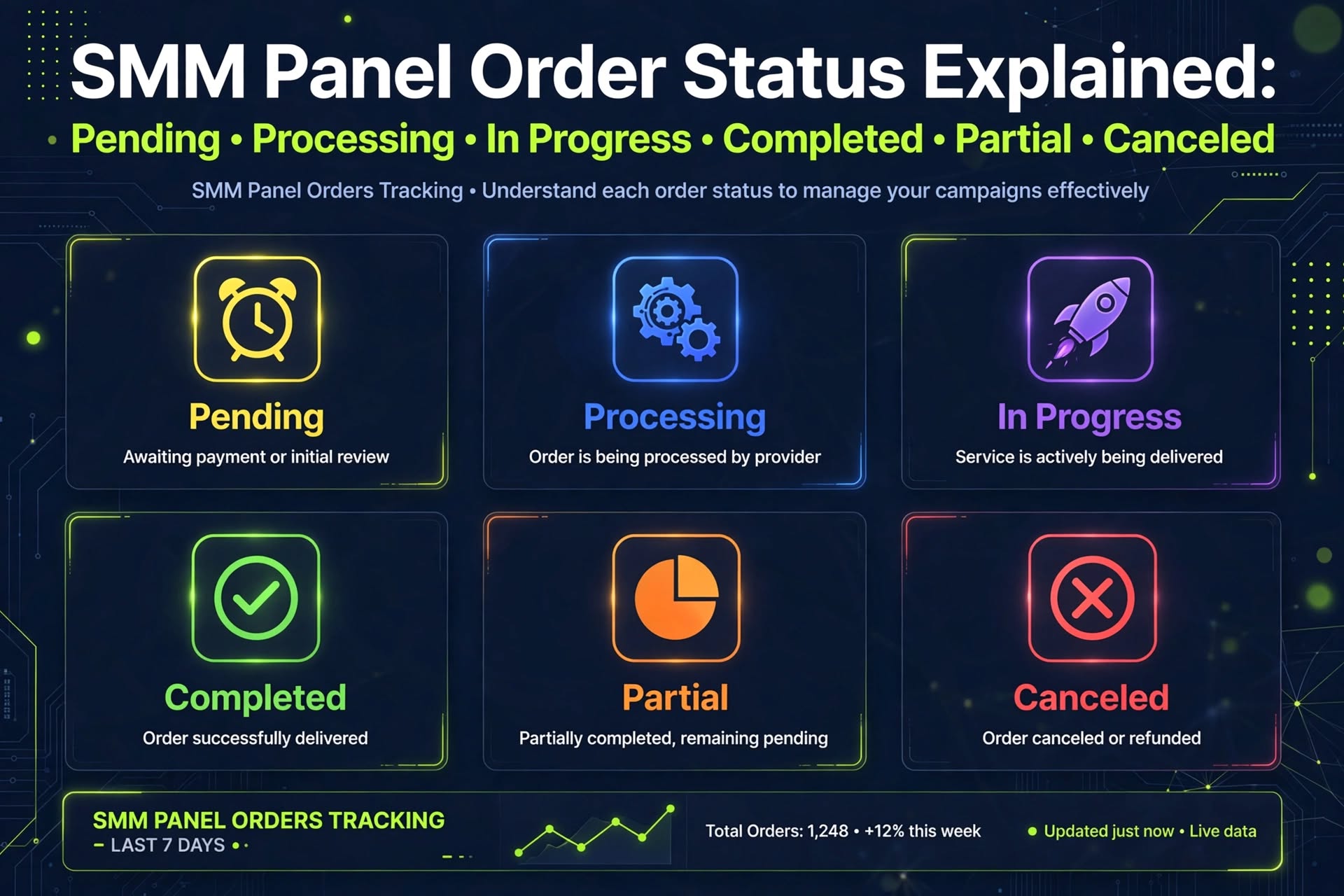
SMM Panel Order Status Explained: Pending, Processing, Completed, Partial and Canceled
When you place an order through an SMM panel, you may see a status such as Pending, Processing, In Progress, Completed, Partial, or Canceled.
These labels help you understand what the ordering system reports about your request. However, if you are new to SMM panels, it may not be clear what each status means or what you should do next.
Understanding your SMM panel order status can help you track orders, avoid unnecessary duplicate requests, and contact customer support with the right information.
In this guide, we will explain the most common order statuses and share practical steps for handling delays and incomplete orders.
What Is an SMM Panel Order Status?
An SMM panel order status is a label that describes the reported stage of an order.
After submitting an order, you can usually check its status in the order history or dashboard. Depending on the platform, the order record may also show information such as the service name, order ID, quantity, charge, start count, or remaining quantity.
The exact status labels and their meanings can vary between SMM panels and service providers. Always check the instructions and policies that apply to your specific order.
1. Pending
A Pending status generally means that an order has been recorded but has not yet progressed to the next processing stage.
Possible reasons include a queue, a delay in the provider's system, or an order awaiting acceptance.
What should you do?
- Check the order details and submission time.
- Review the service description for estimated start times.
- Confirm that you submitted the correct link and quantity.
- Monitor the existing order in your dashboard.
- Contact support if the stated timeframe has passed or the order details appear incorrect.
Important: Do not immediately submit the same order again just because the status is Pending. The original request may already be in the queue.
2. Processing
Processing generally means that the system or provider is handling the order.
Some panels use Processing and In Progress interchangeably, while others assign them different meanings.
A Processing status does not necessarily mean that the requested activity is already visible on the target social media account.
What should you do?
Review the order information and compare the elapsed time with the service's stated processing expectations.
If the status remains unchanged beyond the expected timeframe, contact customer support with the relevant order ID. Avoid assuming that an order has failed simply because it has not updated immediately.
3. In Progress
In Progress generally indicates that the order is being worked on or that delivery has started, according to the provider's system.
The actual delivery speed can depend on the service, provider, order size, and current conditions.
What should you do?
- Monitor the existing order.
- Check the service description for relevant limitations.
- Compare the dashboard status with the available order information.
- Contact support if there is a significant discrepancy or the order exceeds its stated timeframe.
Remember that an active order status is not a guarantee of a specific completion time or a particular marketing outcome.
4. Completed
Completed generally means that the system has marked the order as fulfilled according to its recorded process.
However, Completed does not necessarily guarantee permanent retention, audience quality, increased sales, or improved reach.
What should you do?
Review the order record and check whether the reported result matches the service description.
If the result appears inconsistent, save the order details and contact support. If the service includes a refill policy, review its eligibility conditions before submitting a request.
A completed order and a successful long-term marketing campaign are not the same thing.
5. Partial
A Partial status generally means that only part of the requested quantity was fulfilled or recorded as delivered.
For example, imagine that you ordered 1,000 units but the provider reports that only 700 were delivered. The remaining 300 units represent the difference between the requested quantity and the reported delivery in this illustrative example.
The exact way a panel handles Partial orders depends on its system and the applicable service terms.
What should you do?
- Check the requested quantity and reported result.
- Review the order's remaining quantity, if available.
- Check whether the system recorded a balance adjustment.
- Review the relevant refund or partial-completion policy.
- Contact support if the accounting or delivery information is unclear.
Do not assume that every Partial order receives the same refund or balance adjustment. Confirm the applicable policy.
6. Canceled
A Canceled status generally means that the order has been stopped or closed without proceeding through its normal fulfillment process.
Possible reasons may include service availability, an invalid target link, provider limitations, or an approved cancellation request.
The reason is not always visible in the status label itself.
What should you do?
Check the order details and any available cancellation message. Review your account balance or transaction history to determine whether an adjustment was recorded.
If you cannot identify the reason for cancellation or the expected balance adjustment is missing, contact support with your order ID.
Before submitting a replacement order, confirm that the original order is no longer active and that the target information is correct.
SMM Panel Order Statuses at a Glance
Order status| General meaning| Recommended next step
Pending| Waiting for a processing stage| Check the start estimate
Processing| Being handled by the system or provider| Monitor the order
In Progress| Reported as actively underway| Review progress and service terms
Completed| Marked as fulfilled| Verify the order record
Partial| Only part of the requested quantity was fulfilled| Check remaining quantity and any adjustment
Canceled| Stopped or closed| Check the reason and transaction record
These are general explanations, not universal definitions. The exact meaning depends on the panel and service.
Why Is My SMM Panel Order Taking So Long?
Several factors can contribute to delays.
Provider Queue
The order may be waiting for processing. Check the service's stated start-time information before assuming there is a problem.
Incorrect Link
An unsupported, inaccessible, or incorrectly formatted link can prevent an order from progressing. Review the required link format in the service description.
Service Availability
A provider may temporarily be unable to process a particular service. Check for notices or contact support if the order remains unresolved.
Technical Issues
Communication problems between systems can delay status updates. An unchanged status alone does not establish whether the underlying request has failed.
Order-Specific Restrictions
Some services have quantity limits, account visibility requirements, or other conditions. Review the instructions that applied when you placed the order.
How to Report an Order Problem to Customer Support
When contacting support, provide enough information for the team to identify the issue.
Include:
- Your order ID
- The service name or service ID
- The time the order was placed
- The current status
- A short explanation of the problem
- Relevant screenshots, if appropriate
For example:
“Hello, my order is still Pending, and the estimated start timeframe shown in the service description has passed. Could you please check the order status? My Order ID is [your order ID]. Thank you.”
Never include your account password, payment password, or authentication codes in a support request.
Providing clear information can help reduce unnecessary back-and-forth communication.
How to Avoid Duplicate Orders
Duplicate orders can create confusion and may result in additional charges.
Follow these precautions:
1. Check your order history before submitting another request.
2. If a page times out, verify whether the original order was recorded.
3. Avoid repeatedly clicking the submit button.
4. Do not assume that an unchanged status means the request was rejected.
5. If you are uncertain, ask support to confirm the original order's state.
If you use an API integration, make sure your system follows the provider's documented error-handling and retry rules. A failed response does not always mean that the provider failed to receive the original request.
Understanding Refunds, Cancellations, and Refills
Refunds, cancellations, and refills are different processes.
Refund: A return or adjustment of money according to the applicable policy.
Cancellation: Stopping an order when cancellation is supported and permitted.
Refill: An additional delivery or correction for an eligible order under the provider's stated terms.
Not every service supports all three options. Eligibility may depend on the service description, the order status, the time elapsed, and the provider's policies.
Before placing an order, review the relevant terms so that you understand what options may be available if a problem occurs.
Frequently Asked Questions
How long should an SMM panel order remain Pending?
There is no universal timeframe. It depends on the service and provider. Check the estimated start time and contact support if that timeframe has passed.
Does Processing mean my order has started delivering?
Not necessarily. Different panels use status labels differently. Check the provider's explanation and available order details.
What does Partial mean in an SMM panel?
It generally means that less than the requested quantity was fulfilled or recorded as delivered. Check the remaining quantity and applicable balance-adjustment policy.
Does Completed guarantee permanent results?
No. Completed generally indicates that the system marked the order as fulfilled. It does not guarantee permanent retention, engagement quality, or business results.
Should I place another order if the first one is delayed?
Check the original order first. Submitting another order without confirming the original status may result in duplicates or additional charges.
Where can I find my order ID?
Most panels display the order ID in the order history or dashboard. The exact location depends on the website's layout.
Final Thoughts
Understanding SMM panel order statuses makes it easier to track requests and identify when additional support may be needed.
Pending, Processing, In Progress, Completed, Partial, and Canceled describe different stages or outcomes in an order workflow. However, their exact meanings and the available next steps depend on the provider and the service.
Always review your order details, follow the stated service conditions, and contact support when the available information does not explain what happened.
If you use SMMMarkets, consult the current service descriptions and applicable policies to understand how your orders are handled.
Track your orders carefully, avoid unnecessary duplicates, and make decisions based on the information recorded in your dashboard.